
What you will learn
On this pageContentsCloseOpen
You uploaded a hero image for a spring campaign eighteen months ago. It is still on the storefront somewhere. You open Content > Files, scroll a flat list of several thousand items named things like IMG_4471_final_v3.jpg, and give up.
Almost every article on this topic concludes that Shopify Files gives you nothing to work with — no search, no filters, no tags, no version history. Digital asset management vendors repeat it so consistently that it has become the default assumption. Checked against the Shopify Help Center on September 3, 2026, most of it is false. What is actually missing is narrower and more specific than the vendor pitch suggests.
What Shopify Files already does
Content > Files ships four documented filters: a File size range selector, a File type menu, a Used in menu that filters by file reference, and an Alt text menu. These combine with operators — you can use is/is not and or/and "logical operators to create more advanced views with specific filter criteria."
You can also sort by date added, file name, or size, hide and reorder columns, delete in bulk, and download the original unoptimized file from the Preview and edit window rather than the CDN-transformed version.
Saved views are queries, not containers
The closest native replacement for folders is saved views: "Saved views are added to the views list at the left of the Files searchbar." This is where merchants get stuck. A view is not a box you drag files into. It is a stored filter, and files enter and leave it automatically as their attributes change.
So instead of a 2025 Campaigns folder, you build views that answer operational questions. Two are worth creating before you evaluate any app: one filtered on Alt text for images missing alt text, and one filtered on Used in for files nothing references. The second is the fastest route to reclaiming storage.
Revert to original exists
"Shopify has no version history" is half wrong. A Revert to original button was added to the media editor, and the Help Center confirms the media editor operates on media in Content > Files, not just product media. You "can choose to revert all changes back to the original image, even after the changes have been saved."
The limits matter. It is a single restore point, not a multi-generation history: it throws away every media-editor edit and returns the file to its original state, with no intermediate versions to choose from. Reverts to a modified image cannot be undone. And the Help Center scopes the feature to an image you modified using the Shopify media editor, so it does not cover a file swapped out using Replace.
What Shopify Files genuinely lacks
Three things, and only three.
Folder hierarchy. No directory structure, and no documentation describing one. Merchants have been asking on the Shopify Community since December 2018, and the thread was still receiving replies in May 2026.
Per-file access control. Shopify does have a staff permission layer for this section — the store permissions documentation lists separate View, Create, and Edit Files permissions, and they are selected automatically when you grant a user Content, Products, or Online store permissions. What it does not have is anything finer: no per-file or per-folder permissions, no internal-only flag, no approval state, and no way to keep an uploaded file off the public CDN. The Help Center opens the Files page with a caution: "Never upload any documents that contain confidential, personal, or sensitive information about you, your business, or your customers." If you need to store a vendor contract or a customer list, Content > Files is the wrong place regardless of which app you install.
Version management for replaced files. Replace is not bulk-capable, works only between identical formats — a JPG can be replaced only by another JPG — and leaves no history you can walk back.
Two places the Help Center contradicts itself
Replace and URL behavior. In the Editing files table, the documentation describes Replace as: "Replace an existing file with a new file, and keep the same file name and URL handle." Further down the same page, the Replace files section carries a note that reads: "When you replace a file, the file name stays the same, but the file's link changes."
Those statements are incompatible, and both were live on the same page on September 3, 2026. The point is not which one is right; it is that neither is reliable. Before replacing a file referenced by a live theme section, an email template, or an external campaign, test it on a development store and check the resulting URL yourself.
Column editing. The searching-filtering-views page says only certain resource lists offer column editing, naming Orders, Inventory, Transfers, Purchase orders, and Metaobjects as examples, and then closes the door: "This option isn't available for other types of lists in the Shopify admin." Files is not among the examples. Yet the Files documentation contains a section titled "Edit columns in your Files list" with a five-step procedure. Assume the Files procedure is current and verify in your own admin.
Renaming, by contrast, is unambiguous: "When you change your file's URL, the previous URL for that file no longer works."
Storage caps, and the second cap most merchants miss
Total file storage per store, by plan:
| Plan | Total storage |
|---|---|
| Starter, Pause and Build, Retail, Basic, Partner development stores | 100 GB |
| Grow | 300 GB |
| Advanced | 500 GB |
| Plus, Partner Plus sandbox stores | 1 TB |
| Enterprise | 10 TB |
Video and 3D models are metered twice more, separately from that total: a count cap of 250 items on Basic and equivalent plans, 1,000 on Grow, 5,000 on Advanced, 50,000 on Plus, 100,000 on Enterprise, and a video storage cap of 50 GB on Basic, 60 GB on Plus sandbox stores, 500 GB on Grow and Advanced, 2 TB on Plus, 10 TB on Enterprise. The Help Center is explicit: "This is a separate limit from the total storage limit for all files in your store." A Basic store publishing product video will usually hit 250 videos or 50 GB long before it approaches 100 GB total.
Downgrading does not delete anything, but it does freeze uploads: "you can't upload new files until you delete enough files to bring your total storage below the new plan's limit."
Paid increases exist at $100 USD/month per 1 TB for Plus and $1,000 USD/month per 10 TB for Enterprise, with conditions: early access only, Plus and Enterprise only, requested by the organization owner through Shopify Support, applied to one production store plus up to two development stores that each receive their own increase rather than sharing one, and "Fractional paid increases aren't available."
File rules that quietly break things
- Images: 20 MB, 25 MP, aspect ratio between 100:1 and 1:100, JPEG, PNG, WEBP, HEIC, GIF.
- Videos: 1 GB, UHD, 10 minutes, 4096 pixels, 120 fps, MOV, MP4, WEBM. These limits do not apply to embedded Vimeo or YouTube links.
- Generic files: 20 MB, any type except HTML. Uploads are capped at 20 files per selection.
- Image file names cannot end with
pico,icon,thumb,testing,small,compact,medium,large, orgrande— those collide with CDN transformation suffixes. Avoid underscores immediately before dimensions for the same reason. - On desktop, a changed sort order reverts after refresh; an alternative order can be saved only in the Shopify mobile app.
- Through the Admin API,
fileCreateaccepts a maximum of 250 files per batch, alt text is capped at 512 characters, and processing is asynchronous. That batch limit is why a folder app's first sync on a large library takes a while.
When not to install anything
Skip the app if your library is in the low thousands and your file names follow any consistent convention. Filters plus two or three saved views will outperform a folder tree you maintain by hand. Skip it too if your real problem is storage pressure: deleting unreferenced files is the fix, and Used in finds them natively. And if you need somewhere to put confidential documents, none of the metadata folder apps solve it — your files still sit on Shopify's public CDN, and only the folder labels move.
Install something when names are inconsistent, several people upload, and vendor-supplied assets arrive with no convention, or when you need an approval workflow.
Three architectures, not a ranking
One finding is worth stating plainly: this category is thin. The seven apps below have 27 reviews between them, three of them have zero, and none carries the Built for Shopify badge as of September 3, 2026. Ranking on that evidence base would be dishonest. What separates them is architecture — where your organization actually lives.
| App | Where assets live | Starting price | Free plan on a live store | Rating (reviews) | Launched | Data access includes Files |
|---|---|---|---|---|---|---|
| File Manager ‑ Custom Folders | Shopify CDN | Free, Pro $2.99/month | Yes | 3.7 (9) | January 28, 2025 | Yes |
| File Manager & Image optimizer | Shopify CDN | Free, no paid tier | Yes | 5.0 (6) | June 9, 2026 | Yes |
| Filetastic ‑ Image Manager | Shopify CDN | Basic $3.99/month | No, free is development stores only | 4.6 (11) | December 22, 2021 | Not stated on the listing |
| Squarewise | Shopify CDN | Basic $7/month | No | 0.0 (0) | March 10, 2023 | Yes |
| AeroVault: S3 Media Manager | Your AWS S3 bucket | Free, AWS costs separate | Yes | 0.0 (0) | May 4, 2026 | No, products and collections only |
| Brandfolder ‑ Asset Management | Brandfolder DAM | Free connector, Brandfolder subscription not stated on the listing | Yes | 4.0 (1) | November 18, 2021 | Not stated on the listing |
| Air | Air workspace | Free, Starter $25/month, Business $900/month, Enterprise $2,000/month | Yes | 0.0 (0) | May 15, 2026 | Yes |
All App Store charges are billed in USD. Support hours were not stated on any of the seven listings, which means unconfirmed rather than absent.
Metadata folder layers
These four keep files on Shopify's CDN and add a folder structure stored in the app's own database. Nothing changes on Shopify's side.
File Manager ‑ Custom Folders
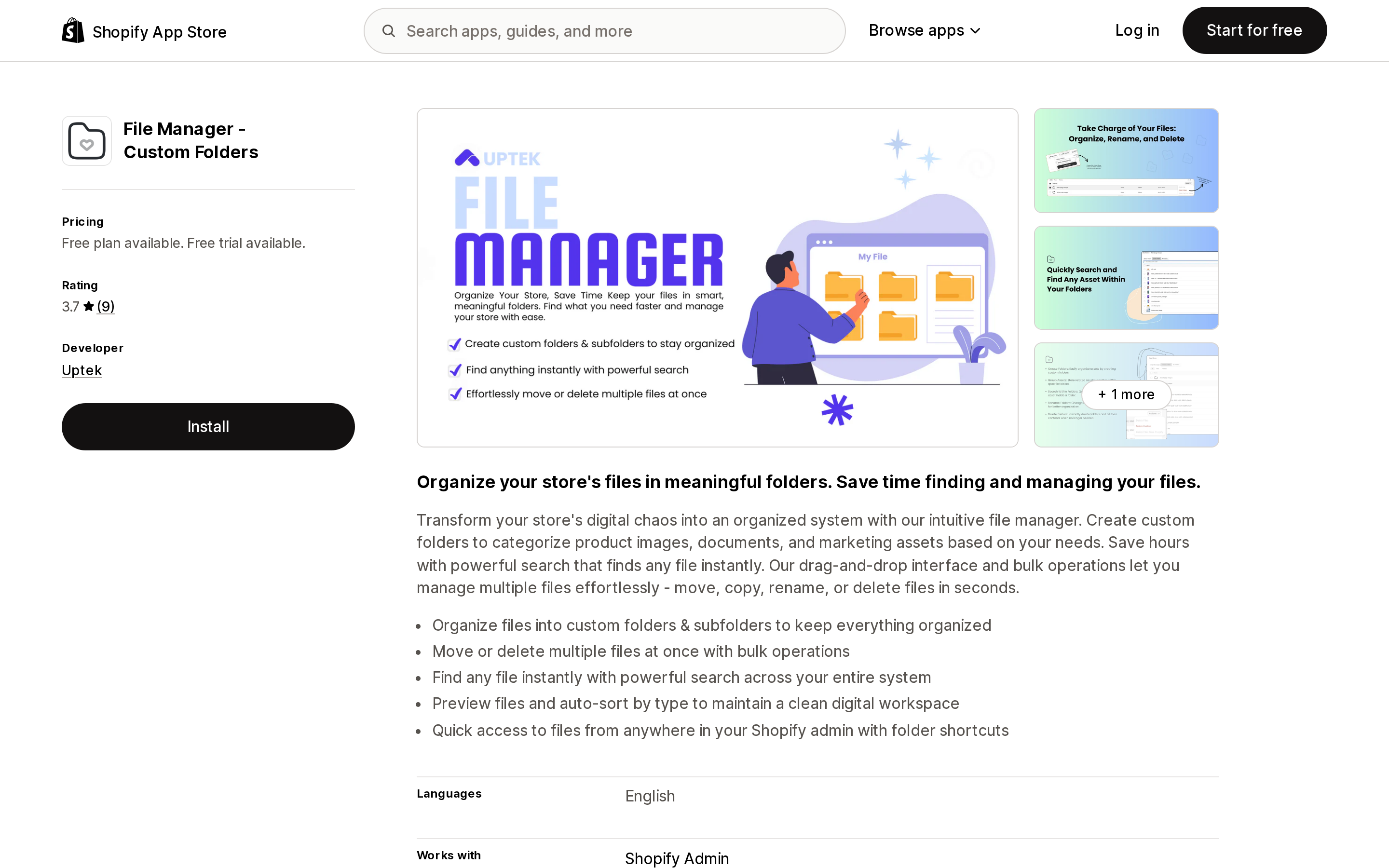
Source: Shopify App Store (File Manager ‑ Custom Folders), retrieved September 3, 2026
Uptek, based in New York. The free tier covers folders and subfolders, upload, search and filter, and bulk operations. Pro at $2.99/month adds media assignment to products, variant images, and collection images, with a 7-day free trial. Data access is narrow: products, collections, and Files, plus the store owner's contact details, which every listing here that publishes a data access section requests.
Reviews are mixed at 3.7 across 9, with two one-star ratings. A US merchant, Solar Blaster, wrote in January 2026 after four months of use: "You can be in a folder you made and upload a file and it doesn't automatically show up in the folder." The developer replied in May 2026 saying onboarding, automatic folder assignment, and thumbnail size had been addressed.
One caveat is unresolved. A single non-English review reports that app-created folders do not appear in Shopify's native file picker. That is structurally consistent with how metadata folders work, but it is one review and could not be verified. Test it during the trial.
File Manager & Image optimizer
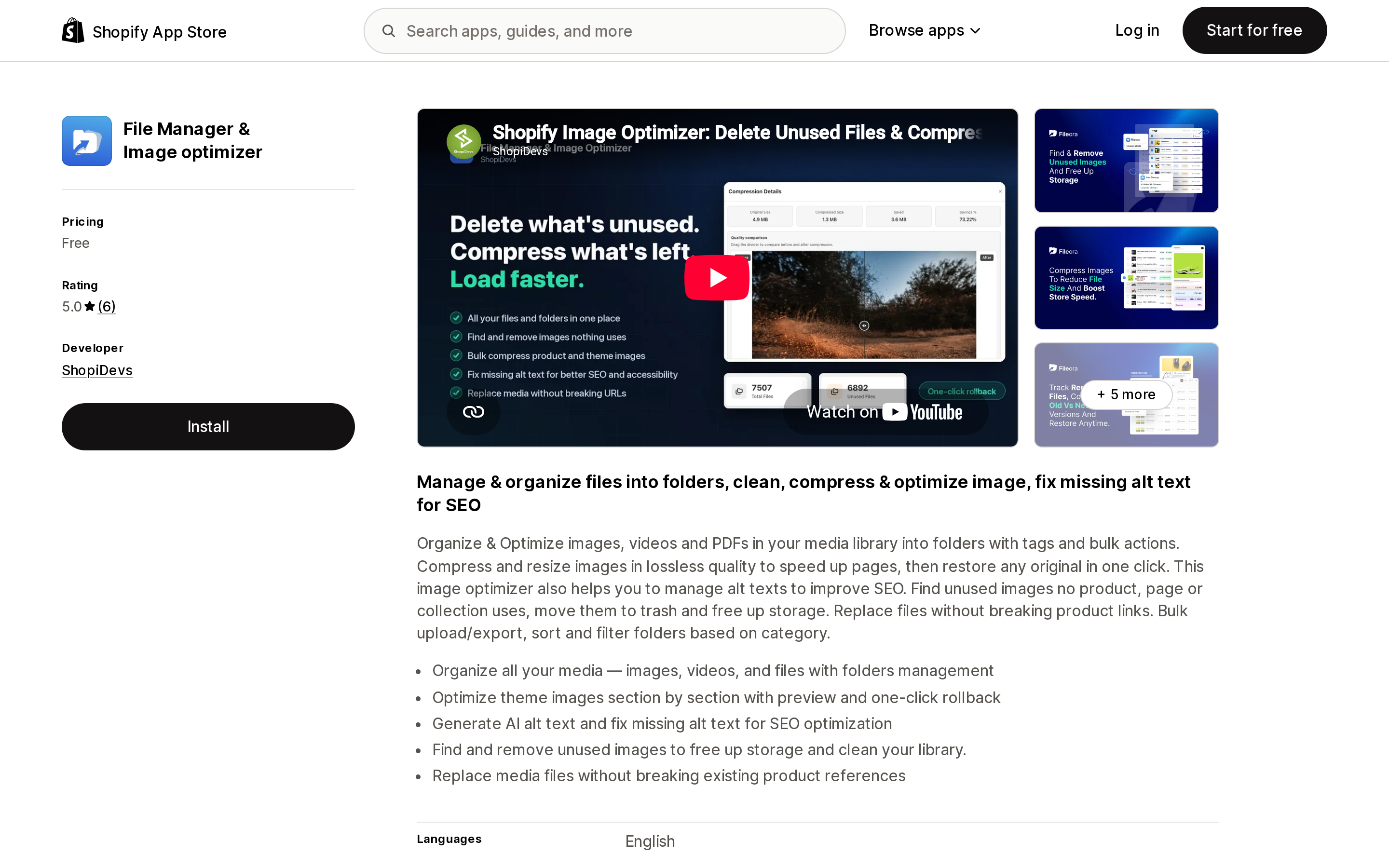
Source: Shopify App Store (File Manager & Image optimizer), retrieved September 3, 2026
ShopiDevs. Listed as free with no paid tier. Beyond folders it advertises theme image optimization with one-click rollback, AI alt text generation, unused image detection, and replacing media "without breaking existing product references" — a direct claim against the Replace ambiguity above, which the app asserts and this article could not verify independently.
Two things to weigh. Its data access is the broadest of the five apps here that publish a data access section at all: on top of products, collections, and Files, it requests Online Store pages and theme, metaobject definitions and metaobjects, and blog contributor data including email and IP address. Theme write access for a file organizer is a wide ask. And it launched June 9, 2026 with no stated revenue model, so price the possibility of future charges or withdrawal into your decision. Its 6 reviews are all five-star, several written within hours of install. The unused-image detection is the genuinely useful part if you are near a cap.
Filetastic ‑ Image Manager
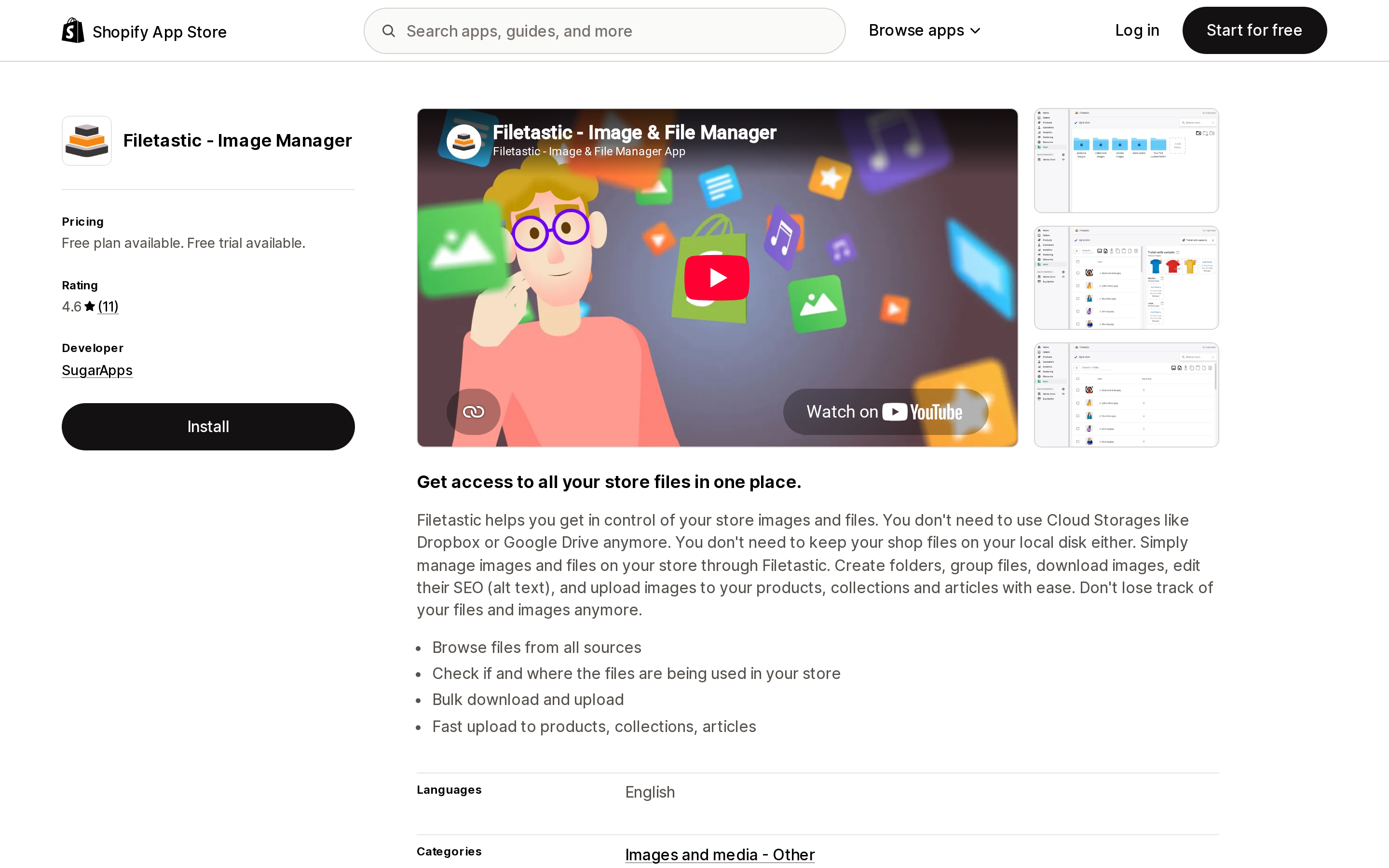
Source: Shopify App Store (Filetastic ‑ Image Manager), retrieved September 3, 2026
SugarApps, launched December 22, 2021 — the longest track record of the four metadata folder apps, and second only to Brandfolder's November 18, 2021 launch across all seven. It covers browsing files from all sources, checking where files are used, bulk download and upload, and fast upload to products, collections, and articles.
Read the pricing carefully. The free plan is described as free for Shopify development stores and free until a Shopify plan is selected, so on a live store you are on Basic at $3.99/month after a 7-day trial. That is not the same thing as the free tiers above. Rating is 4.6 across 11. Data access was not displayed on the listing.
Squarewise
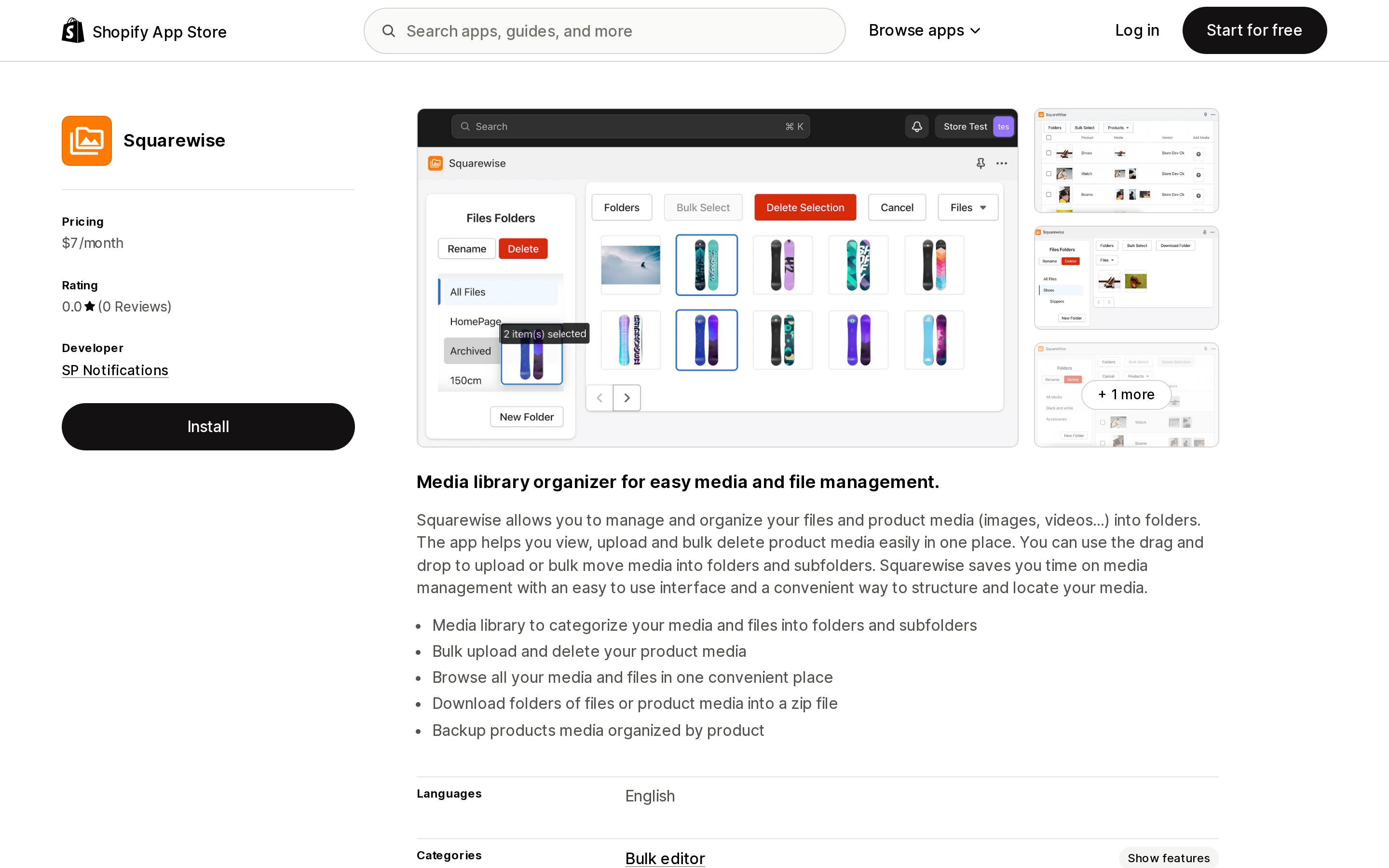
Source: Shopify App Store (Squarewise), retrieved September 3, 2026
SP Notifications. Unlimited main folders and subfolders, bulk upload and delete of product media, and ZIP download of folders or product media, at $7/month with no free plan and no free trial stated on the listing.
Its original pitch — organizing product media as well as files — no longer differentiates it, because Shopify unified the media library in May 2023 and the changelog states that "product media is now available within the files section within content in admin." Combined with zero reviews since a March 2023 launch, the highest entry price of the seven, and no way to try it without paying, this is a hard one to put ahead of the others.
Delisting is not a hypothetical risk
A metadata folder layer stores your structure in the vendor's database. If the app goes away, so does every folder you built.
That happened here. Craftware Simple File Manager was promoted by its own developer in the Shopify Community in August 2024, with a detailed writeup of how it reconstructed a local folder structure inside the app, and a YouTube playlist announcement followed in March 2025. Its App Store URL on September 3, 2026 returns: "This app is not currently available on the Shopify App Store."
The lesson is not to avoid these apps, but to treat app folders as a convenient index rather than an asset and keep fixing file naming in parallel — names travel with the file, folders do not.
Moving assets off Shopify with AeroVault: S3 Media Manager
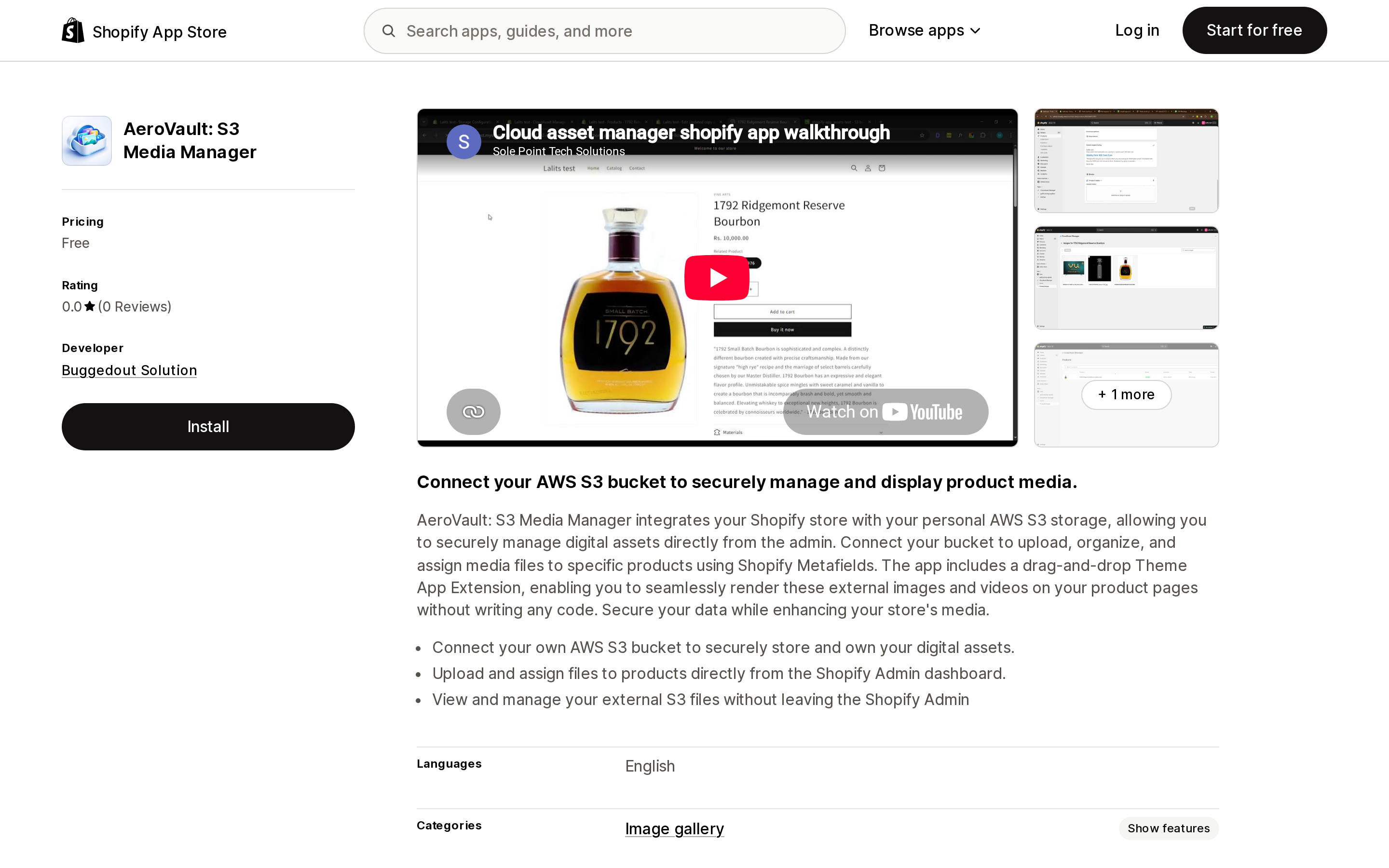
Source: Shopify App Store (AeroVault: S3 Media Manager), retrieved September 3, 2026
Buggedout Solution, launched May 4, 2026. You connect your own AWS S3 bucket, assign files to products via metafields, and render them on product pages through a drag-and-drop Theme App Extension. The app is free; you pay AWS directly.
One correction matters more than anything on the listing: its data access covers products and collections only, not Files. This app does not organize Content > Files. It relocates product media to storage you own, which answers storage caps and video count limits but not a messy file library. Zero reviews, four months old, and it assumes you can run an S3 bucket and its IAM policies.
Pointing Shopify at an external DAM
Both of these invert the problem: the DAM is the source of truth and Shopify becomes an output. They are also the only two here whose organization, permissions, and review steps live in a system outside Shopify — though the App Store listings barely describe those features. Air's listing alludes to a workspace "where your team already manages and approves media" and Brandfolder's does not mention permissions at all, so check each DAM's own product documentation rather than the App Store page.
Brandfolder ‑ Asset Management
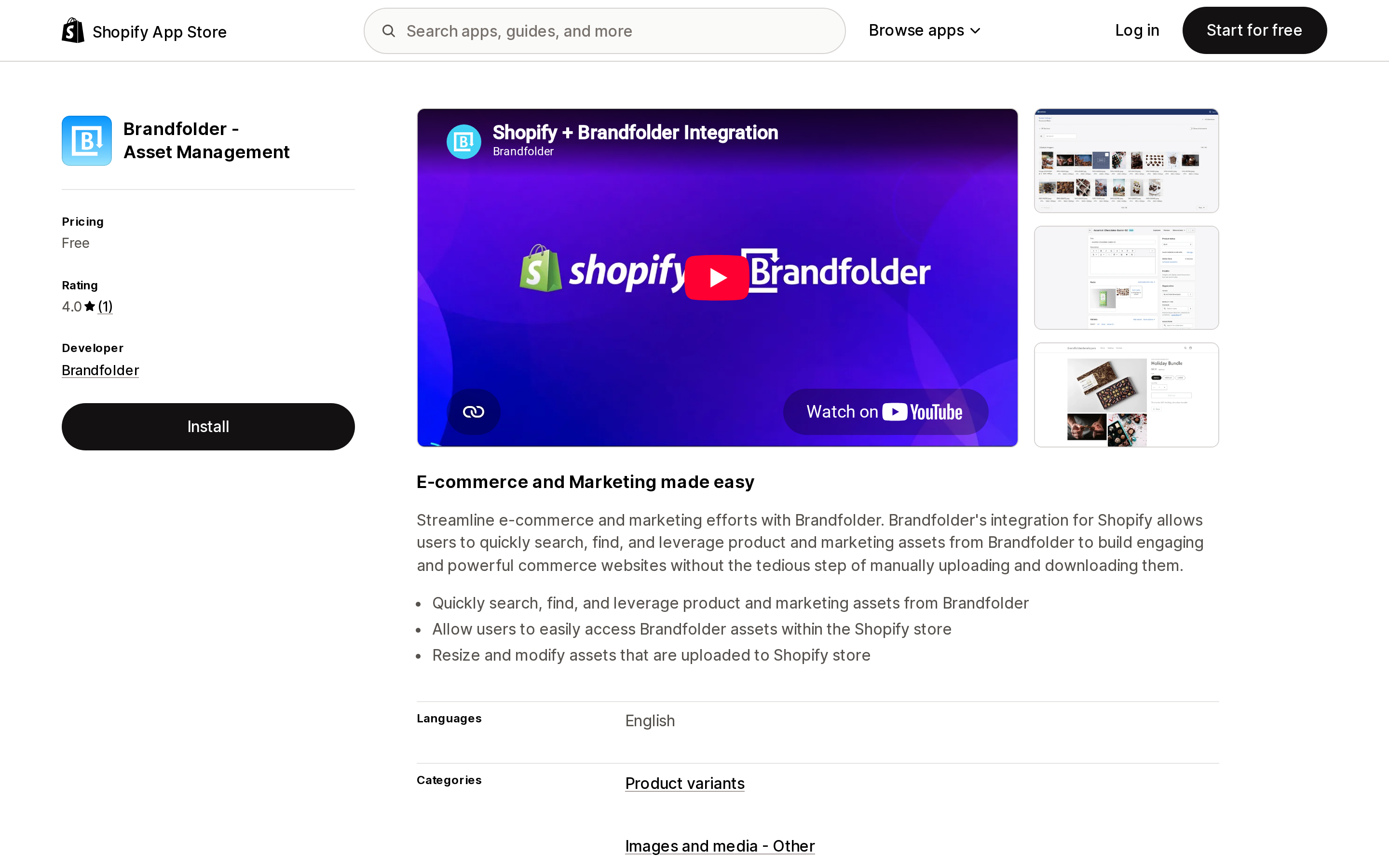
Source: Shopify App Store (Brandfolder ‑ Asset Management), retrieved September 3, 2026
Brandfolder, Denver. The connector searches Brandfolder assets from inside Shopify and resizes assets uploaded to the store. It is listed as free; the Brandfolder subscription itself is separate and its price is not stated anywhere on the App Store listing. Data access was not displayed on the listing. One review, 4.0, written after 23 minutes of use and noting the resize tool was partly broken — too little to generalize from. This makes sense only if Brandfolder is already your company DAM.
Air
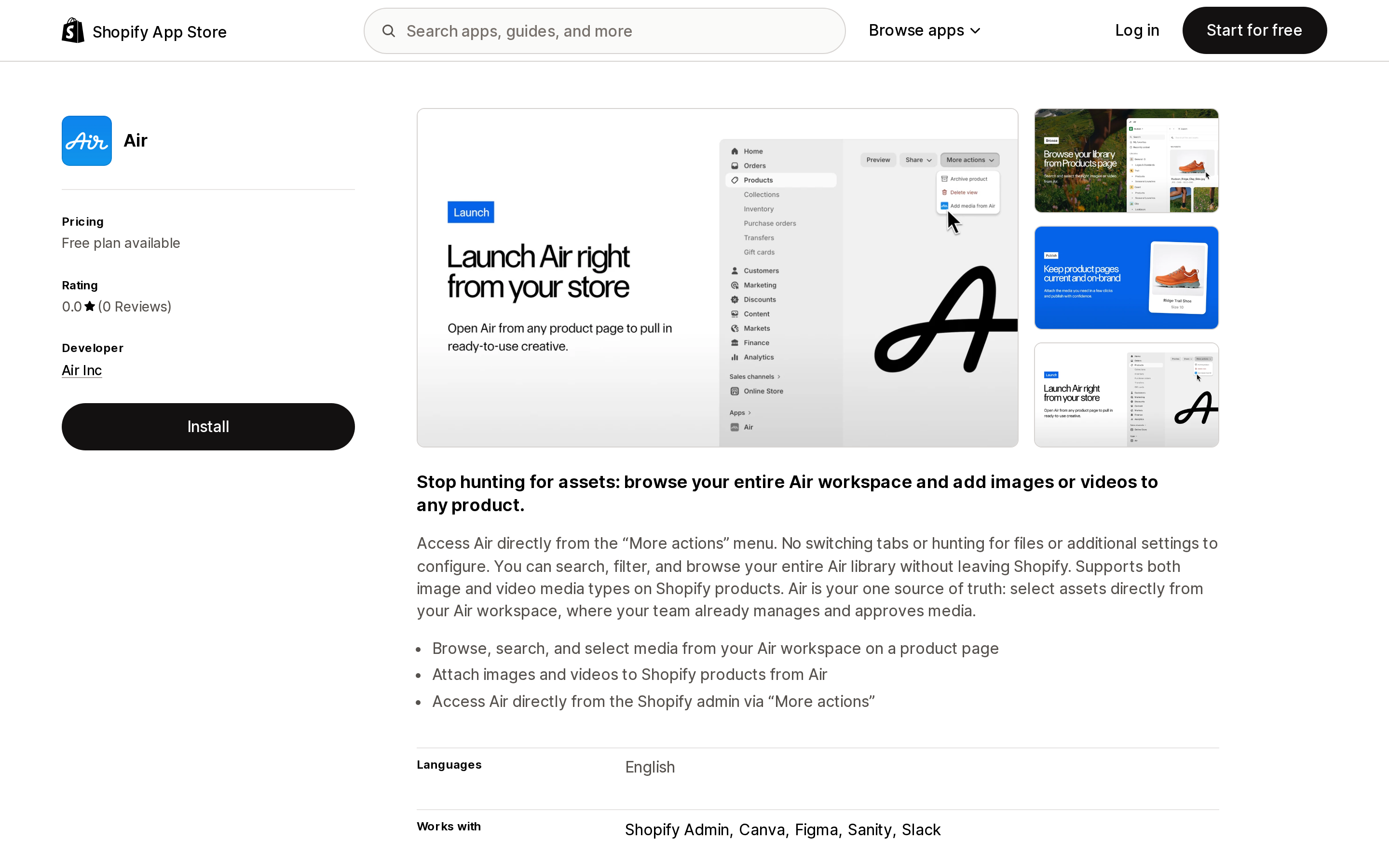
Source: Shopify App Store (Air), retrieved September 3, 2026
Air Inc, Brooklyn. You browse and select media from an Air workspace on a product page, attach images and video to products, and open Air from the Shopify admin via More actions. It works with Canva, Figma, Sanity, and Slack, and it publishes enterprise-tier pricing on the listing itself: Free, Starter $25/month, Business $900/month, Enterprise $2,000/month. What the free plan includes is not stated on the listing. Zero reviews since its May 15, 2026 launch. Reasonable for a US DTC brand whose creative team already approves assets somewhere; oversized if you only want tidier files.
A different job: backup and export
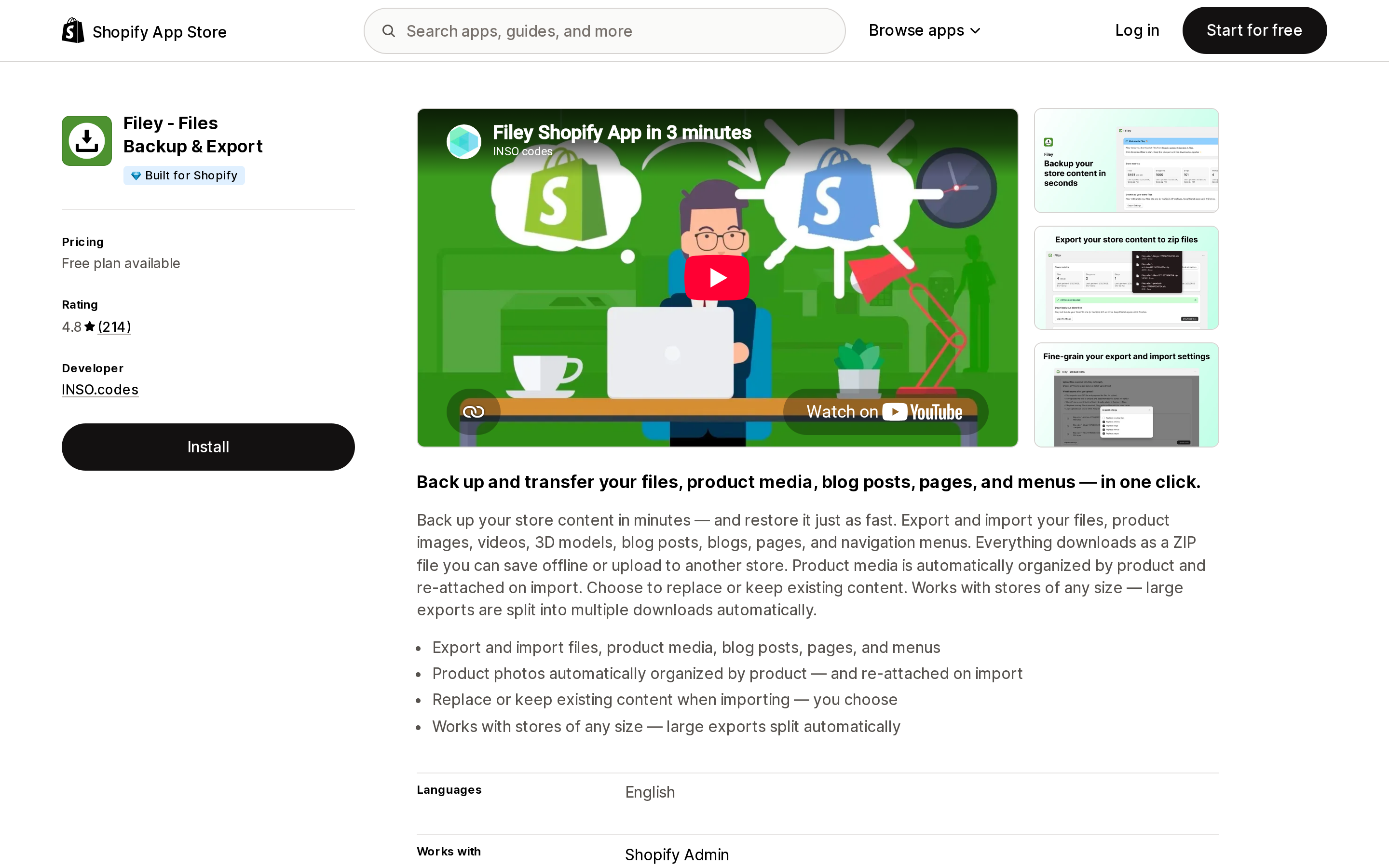
Source: Shopify App Store (Filey ‑ Files Backup & Export), retrieved September 3, 2026
Filey ‑ Files Backup & Export by INSO.codes exports and imports files and product media. Free plan plus Pro at $4.99/month, rated 4.8 across 214 reviews.
It is here for one reason: as of September 3, 2026 it is the only app mentioned in this article carrying the Built for Shopify badge, and it is not a folder app. The badge exists in this space, just not on this problem. Note also that the developer's public reply about putting product files into folders on the Pro plan answers a review complaining about how the export was grouped, so read it as structure inside the exported archive rather than inside the Shopify admin. If backup is your goal, see our guide to Shopify store backup apps.
Choosing
If files number in the low thousands and names are reasonably consistent, build saved views and stop. If names are chaotic and you want a visual hierarchy, a metadata app will help: File Manager ‑ Custom Folders has the lowest paid tier of the four at $2.99/month, while File Manager & Image optimizer offers more features in exchange for the widest permission scope of any listing here that publishes one. Treat the folders as disposable either way. If you are running out of storage, audit with Used in first, then consider image optimization or moving product video off Shopify before paying for capacity. If you need per-file permissions or an approval step, staff Files permissions are all Shopify gives you and no app in this comparison adds more inside the admin — and nothing confidential belongs in Content > Files at all.
Pricing, ratings, review counts, and badge observations were retrieved from en-US App Store listings on September 3, 2026, in a category where three of seven apps have no reviews at all. Re-check before you commit.
Sources
- Uploading and managing files — Shopify Help Center
- Searching and filtering your lists using views — Shopify Help Center
- Using the media editor — Shopify Help Center
- Store permissions — Shopify Help Center
- Media versioning — Shopify Changelog
- Unified media library pools — Shopify Changelog
- fileCreate mutation — shopify.dev
- files query — shopify.dev
- How can I effectively organize my files in Shopify? — Shopify Community
- Can organizing a massive Shopify file library into folders be automated? — Shopify Community
Shopify Flow adds and removes product tags for free on every paid plan, but its Get product data action returns at most 100 products per run, so backfilling an existing catalog becomes a scheduled loop. Flow also has no generic Product updated trigger, which means it structurally cannot re-tag a product after you edit its type, vendor, or price. Shopify Magic suggests a product category and fills category metafields, but product tag generation is not on its published feature list. The six apps compared here meter completely different units: Leap Auto Tags counts every tag added and every tag removed as one credit against 2,000 per month at $8, FilterTag meters 500 to 50,000 generated tags per month at $9 to $59, TAGit AI works out to 3 to 9 cents per generated tag, and Helium charges $9.99 one-time per 100 products. Mechanic and Matrixify charge flat fees of $16 to $199 and $20 to $200 with no per-tag metering at all. Check the denominator before you check the price. Researched September 3, 2026.